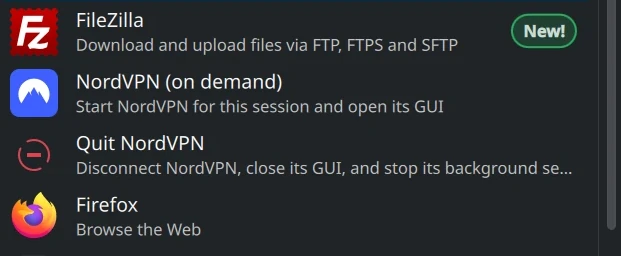
I use NordVPN occasionally, so I wanted it to stay completely stopped until I chose to launch it. Before making this change, I measured roughly 0.5 GB of memory use while NordVPN was idle. Memory use will vary by system and version, but that was enough to make me investigate.
Turning off NordVPN’s Auto-connect setting was impossible since there isn’t one, at least in the Linux version. That setting controls whether it connects to a VPN server; the background service can still start with the computer. Not only can you not stop the app from auto-starting, there is no way through the GUI to close it down (even though it does have a close button). NordVPN seems to want to take over your computer once installed.
My solution was to disable its boot services and create a NordVPN (on demand) launcher. The launcher starts the background service, waits for it to become ready, and opens the GUI. It never enables startup at boot.
I used this approach on Fedora 44 KDE with NordVPN 5.4.1. The service commands also apply to installations on Ubuntu or Kubuntu that use the same systemd units.
1. Check your installation
This guide assumes you already have NordVPN’s native Linux application and GUI installed.
Check the required commands and units:
command -v nordvpn nordvpn-gui pkexec kdialog timeout
systemctl list-unit-files nordvpnd.service nordvpnd.socketOn my Fedora installation, the GUI command was /usr/bin/nordvpn-gui, and the units were:
nordvpnd.service: the background daemon.nordvpnd.socket: the socket through which applications contact it.
Both matter. Leaving the socket running can allow an application contacting NordVPN to activate the daemon again.
2. Disable automatic connections and stop boot startup
While NordVPN is still running, turn off automatic VPN connections:
nordvpn set autoconnect offIf you want ordinary internet access while NordVPN is stopped, also disable its kill switch:
nordvpn set killswitch offDisabling the kill switch allows traffic to use your regular connection when the VPN is unavailable. NordVPN documents these settings in its Linux application guide.
Now disconnect, close the GUI, and disable both boot units:
nordvpn disconnect
pkill -u "$(id -u)" -x nordvpn-gui

sudo systemctl disable --now nordvpnd.socket nordvpnd.serviceIf your installation includes the kill-switch helper, stop that too:
sudo systemctl stop nordvpnd-killswitch.serviceAn older package may report that the helper does not exist.
The --now option stops the units immediately as well as disabling boot startup. A later systemctl start runs them for the current session without enabling them for future boots. systemd documentation
This procedure does not disable Fedora’s firewalld or require disabling NordVPN’s own firewall.
3. Prevent the GUI from launching at login
System services and desktop login startup are separate mechanisms.
For the standard NordVPN desktop filenames, create user-level autostart overrides:
mkdir -p "$HOME/.config/autostart"

for app in nordvpn-gui nordvpn; do
    cat > "$HOME/.config/autostart/$app.desktop" <<'EOF'
[Desktop Entry]
Type=Application
Name=NordVPN
Hidden=true
EOF
doneA user autostart entry with Hidden=true suppresses a system entry with the same filename. Desktop autostart specification
Also check System Settings → Autostart for any separately named NordVPN launcher you previously added. Remove or disable it. Close NordVPN before logging out so KDE does not retain it as part of a session you intend to restore.
4. Create the on-demand script
Create a directory for your personal launcher:
mkdir -p "$HOME/.local/bin"Then create the script:
cat > "$HOME/.local/bin/nordvpn-on-demand" <<'EOF'
#!/usr/bin/env bash
set -euo pipefail

fail() {
    /usr/bin/kdialog --error "$1" \
        --title 'NordVPN (on demand)' || true
    exit 1
}

if ! /usr/bin/systemctl is-active --quiet nordvpnd.service ||
   ! /usr/bin/systemctl is-active --quiet nordvpnd.socket; then
    /usr/bin/pkexec /usr/bin/systemctl start \
        nordvpnd.socket nordvpnd.service ||
        fail 'NordVPN could not be started.'
fi

# Wait for the daemon's API before opening the GUI.
for ((attempt = 0; attempt < 30; attempt++)); do
    if /usr/bin/timeout 2s /usr/bin/nordvpn settings \
        >/dev/null 2>&1; then
        exec /usr/bin/nordvpn-gui "$@"
    fi
    sleep 1
done

fail 'NordVPN started, but its API did not become ready. Check systemctl status nordvpnd.service.'
EOF

chmod +x "$HOME/.local/bin/nordvpn-on-demand"The script requests administrator authentication through KDE when the service needs starting. It opens the GUI as your normal user.
The readiness check is intentional: a service can be running before its API is ready to accept requests.
5. Add it to KDE’s application menu
Create a menu entry:
mkdir -p "$HOME/.local/share/applications"

cat > "$HOME/.local/share/applications/nordvpn-on-demand.desktop" <<EOF
[Desktop Entry]
Type=Application
Version=1.0
Name=NordVPN (on demand)
Comment=Start NordVPN for this session and open its GUI
Exec="$HOME/.local/bin/nordvpn-on-demand"
Icon=nordvpn-gui
Terminal=false
Categories=Network;
EOFSearch KDE’s application menu for NordVPN (on demand). Use this entry instead of the original NordVPN launcher, and pin it if convenient.
If NordVPN suggests running:
sudo systemctl enable --now nordvpndskip that suggestion. It would enable boot startup again.
6. Verify that NordVPN is really stopped
These commands inspect systemd and running processes without contacting NordVPN’s API:
systemctl is-enabled nordvpnd.service nordvpnd.socket
systemctl is-active nordvpnd.service nordvpnd.socket
pgrep -a -x nordvpnd
pgrep -a -x nordvpn-guiWhen NordVPN is fully stopped, expect:
disabled
disabled
inactive
inactiveThe two pgrep commands should produce no output.
You can also check the helper, if installed:
systemctl is-active nordvpnd-killswitch.serviceIt should report inactive.
Repeat these checks after reboot to confirm the setup. Avoid using nordvpn status to verify that nothing is running: it contacts the API and could activate the daemon if the socket is listening.
Stopping NordVPN after using it
Closing the GUI can leave the background daemon running. To stop it immediately:
nordvpn disconnect
pkill -u "$(id -u)" -x nordvpn-gui
sudo systemctl stop nordvpnd.socket nordvpnd.serviceStop the kill-switch helper too if your installation includes it.
Otherwise, shutdown stops the daemon, and the disabled units stay off at the next boot. Check their status again after NordVPN package updates, since installers can change service configuration.
This gives me the behavior I wanted: NordVPN stays installed and available, but its background processes run only when I choose to start them.